Marks for individual assessment items can be added as they are completed throughout the study period, or all at once at the end. Make sure that you have set up the assessments before this. Refer to Section A: Scheduling Assessments for details.
To add marks to scheduled units:
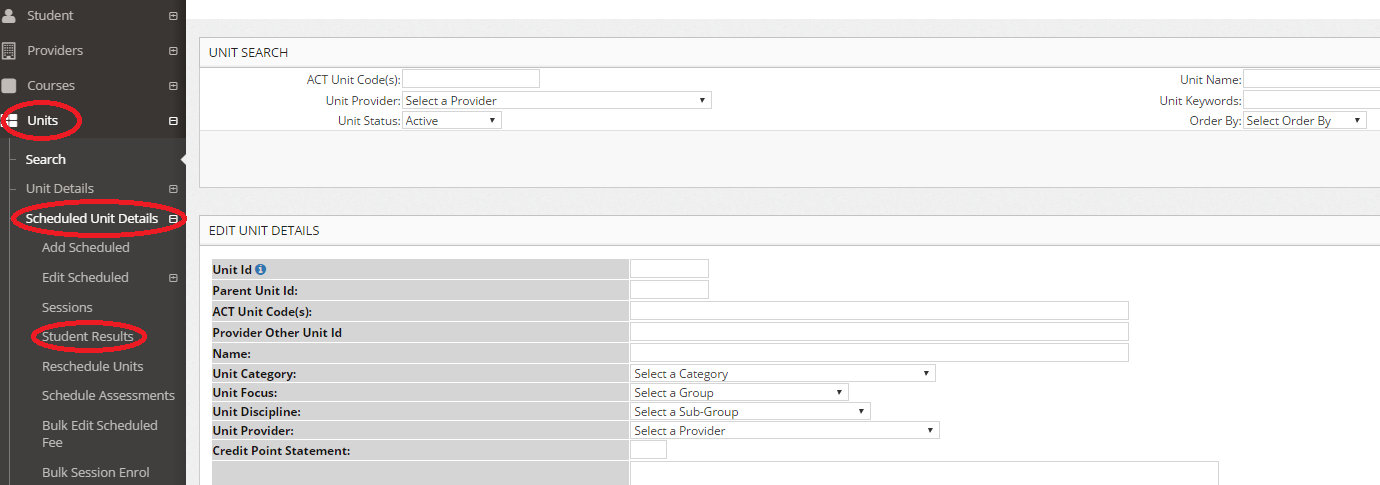
- Go to the Units module then Scheduled Unit Details in the left menu.
- Select Student Results from the drop-down list.
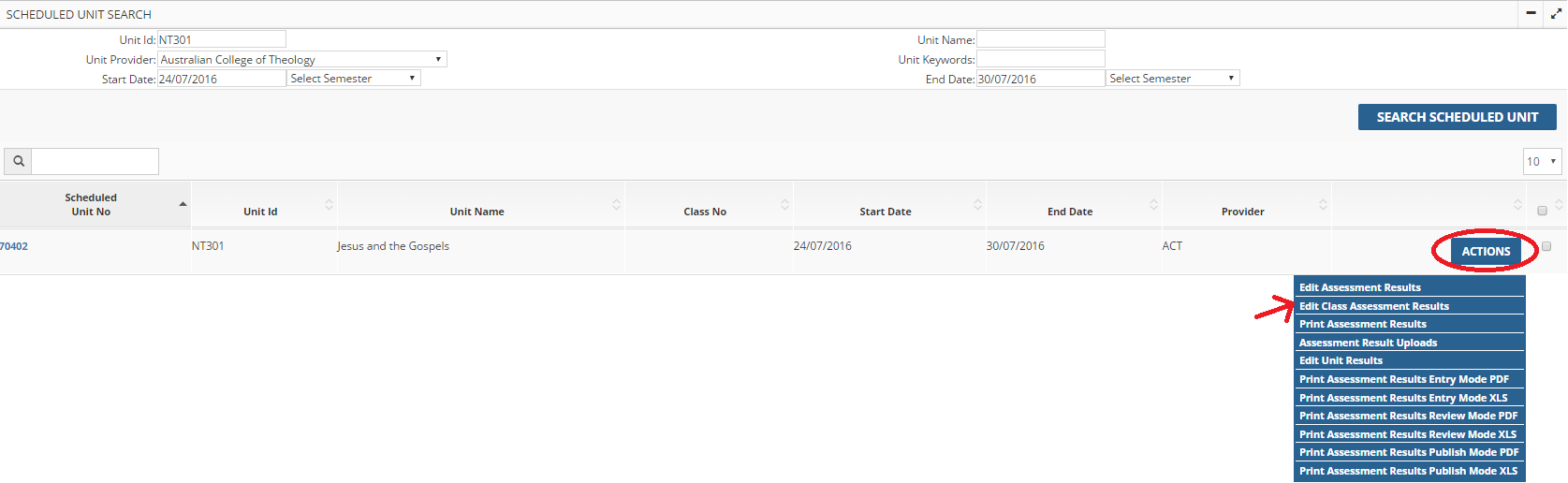
- Search for the scheduled unit you wish to add assessment marks to.

- The following page will load. Click ‘Actions’ following by ‘Edit Class Assessment Results’ next to the unit for which you are entering the results.
- Click the Add Results button
 next to the assessment item you need to add marks to.
- Enter marks students’ marks in boxes under Raw Mark. Do not round the marks here. Paradigm will automatically round the total later. Do not manually type in any marks to the Awarded Mark column or change the Awarded Grade or Status.
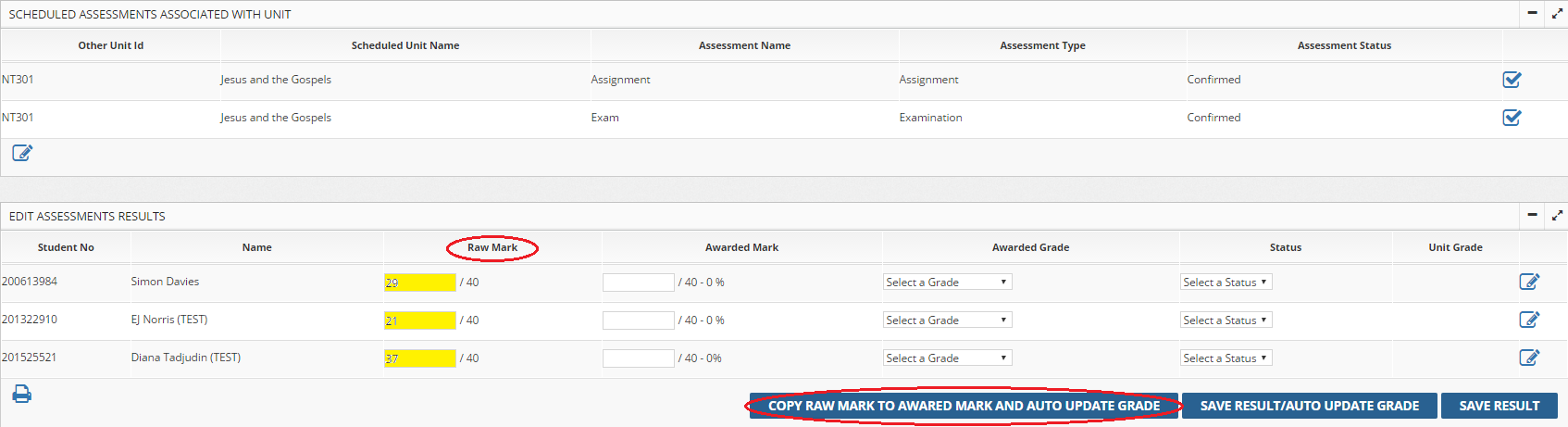
- Choose Copy Raw Mark to Awarded Mark and Auto Update Grade.
- Repeat steps 5-7 until all student marks for all the unit’s assessment tasks have been entered.
- When all assessment marks for the unit have been entered, click “Edit Unit Results”

 That will take you to the following screen: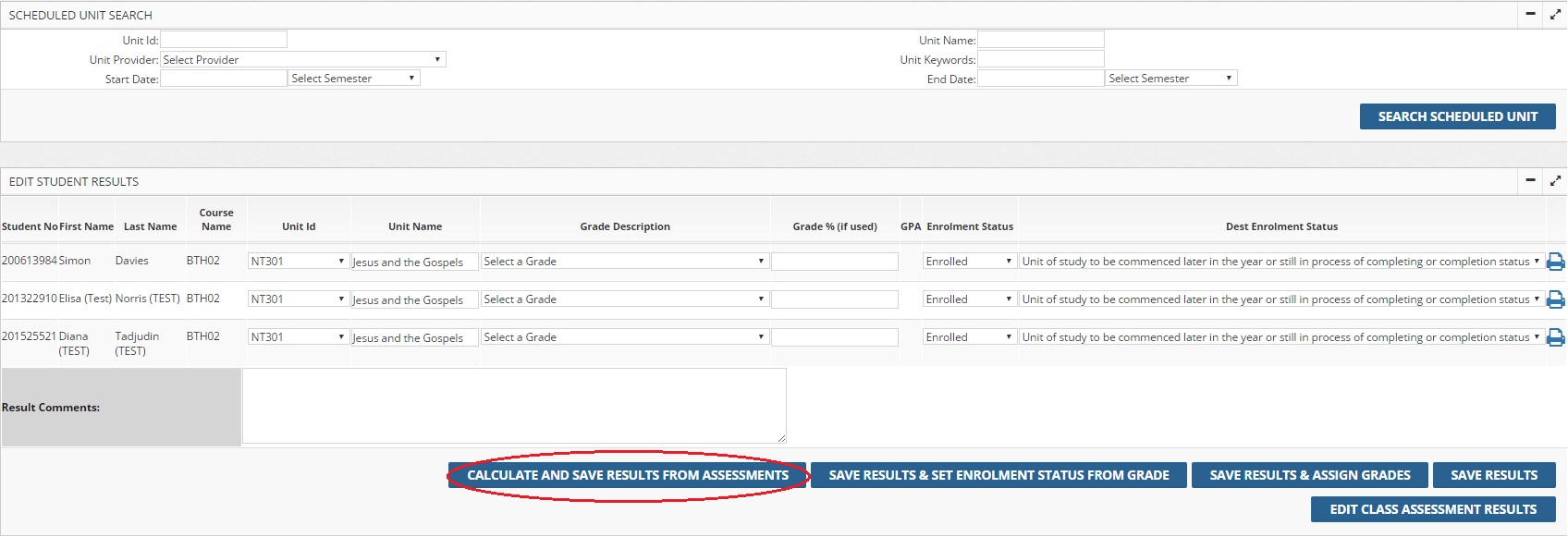
- Choose Calculate and Save Results from Assessments to have the total grade for that unit calculated for each student. This will calculate the total and round it to the nearest percent, assign a grade description, and update the enrolment status.
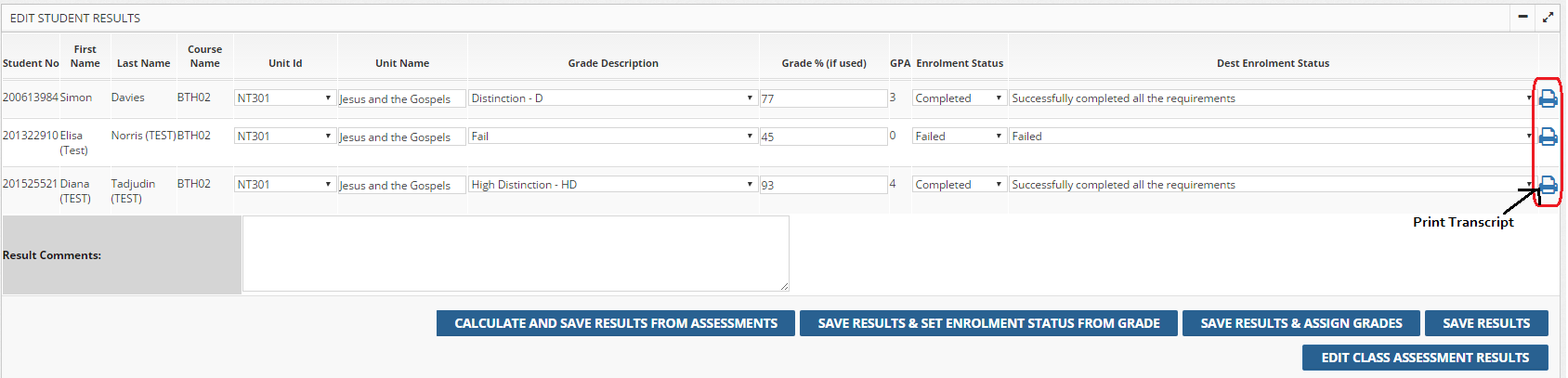
From this screen you can print transcripts for individual students in the class. Click the Print Transcript button,  on the right side of the page for each student whose transcript you wish to print. The transcript will open on a new page. Note: grades for unpublished units will not be printed on transcripts. Grades can only be published by the AUT office once they have been approved for release.
Rounding of marks:
While individual assessment marks can be entered using up to 2 decimal points, final totals are automatically calculated and rounded on Paradigm.
Entering results for pass/fail units:
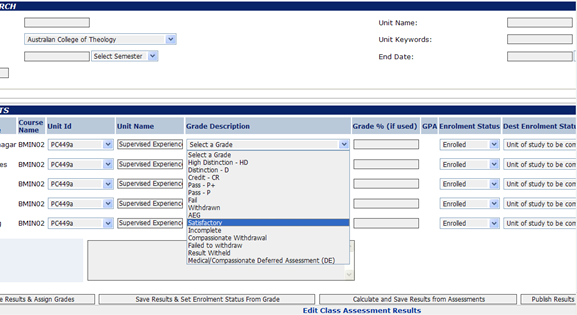
For pass/fail units it can be a little tricky to enter assessments results. To enter results for pass/fail units search for the scheduled unit and Student results, as in steps 1-4, but instead of selecting Edit Class Assessment Results select Edit Unit Results. Then enter “satisfactory” under Grade Description and “Completed” under Enrolment Status. You do not need to enter any marks under Grade %.
If the student failed the unit select “Fail” under Grade Description and “Failed” under Enrolment Status.